Howatson+Company · A guide for non-coders

Hello,
Claude Code.

Claude Code is a tab inside the Claude desktop app that can actually do things. It reads your files, searches your tools, drafts messages, runs tasks. Here's the simplest way to get it running.

Time
About 5 minutes
What you need
A Mac · Pro plan
Download
claude.com/download

Eight quick steps.

Top to bottom. Each one's a click.

01

Download Claude Desktop

Go to claude.com/download. Open the .dmg and drag Claude into Applications.

02

Open the app and sign in

Launch Claude. Sign in, or create an account if you don't have one.

03

Open the Code tab

You'll land in Claude Code. The sidebar shows the Claude Code wordmark, then New session, Routines, Customize, and More. Click New session to begin.
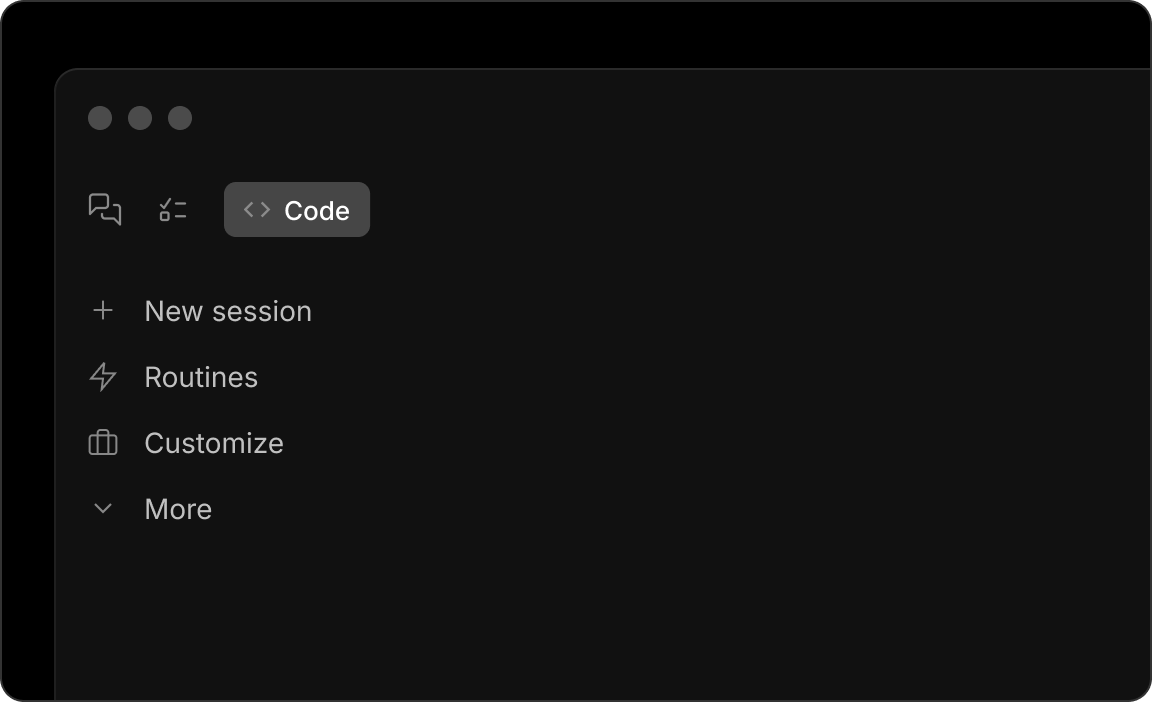
The Claude Code sidebar showing the Code tab highlighted
Fig.01. The Claude Code sidebar
04

Choose 'Local' as your environment

Near the message box, pick Local. This means Claude runs on your Mac and can read your local files. Simplest option.

05

Pick a project folder

Click the folder selector and choose the folder you want Claude to work in. Claude can only see files inside this folder, nothing else.

The Claude Code composer with the folder picker highlighted
Fig.02. The composer — Local mode and folder picker
06

Pick a model

Use the model dropdown next to the send button. Sonnet for most things. Opus when you want it to think harder.
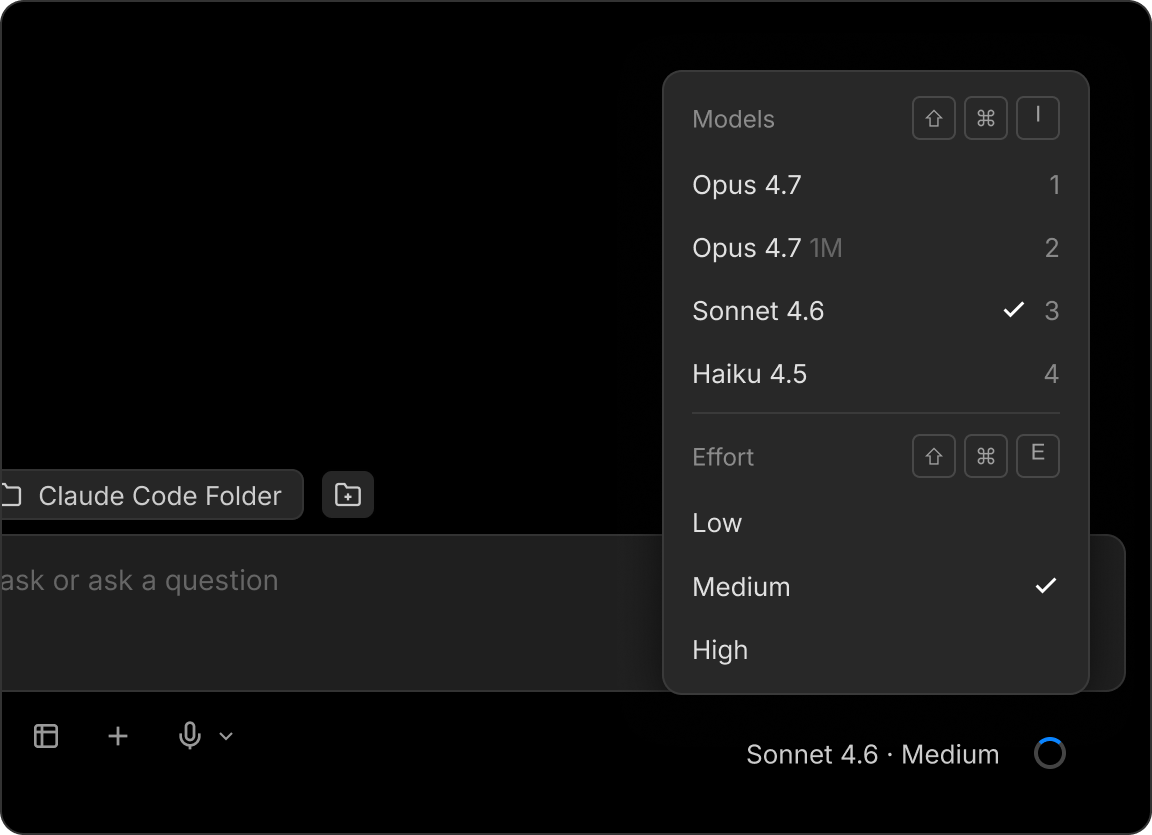
Model picker menu
Fig.03. Model picker
07

Set 'Ask permissions'

For your first session, choose Ask permissions. Claude will check with you before changing files. You can loosen this later.
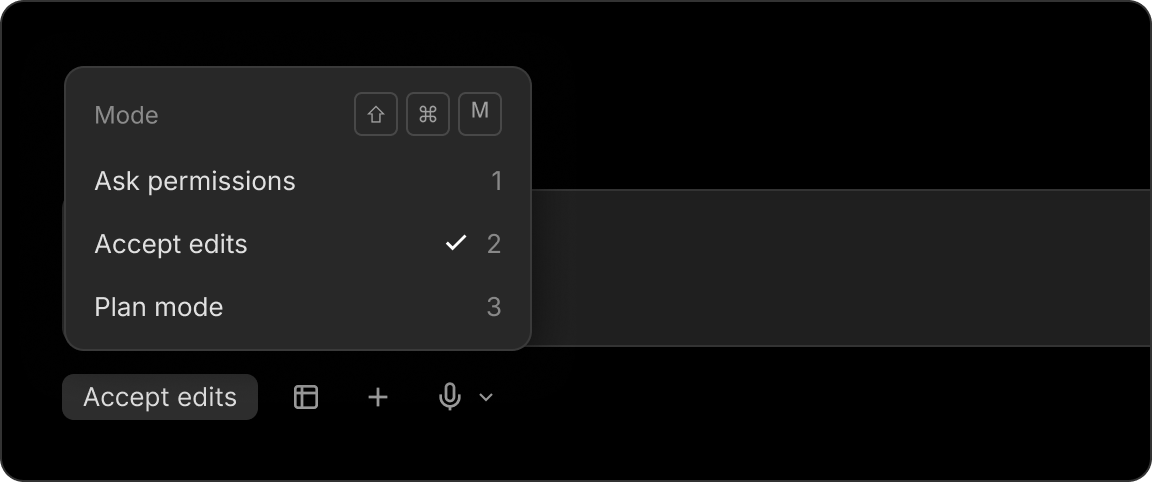
Permission mode picker showing Accept Edits options
Fig.04. Permission mode picker
08

Type something and hit Enter

That's it. Try something small first, like "summarise this PDF" or "list the files in this folder", to get a feel for it.
Plug Claude into the apps you already use.

Then ask it to search, read, or act across them.

How to add one

01

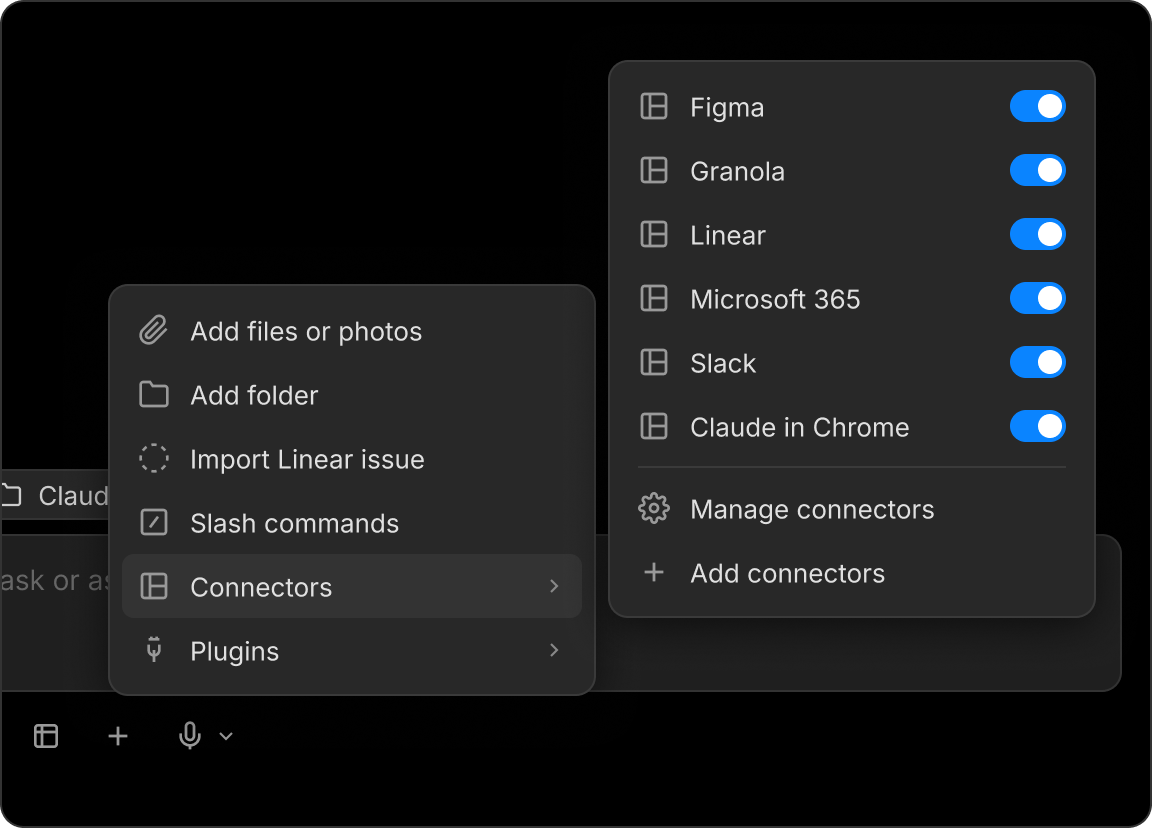
Click the + button next to the message box.

02

Select Connectors from the menu and browse the list.

03

Pick one, sign in, and authorise access.

The plus button menu with the Connectors submenu open
Fig.05. The + menu with Connectors expanded

Plain English. No special syntax.

  • Summarise this PDF. (drag the file in first)
  • What's on my calendar this week?
  • Find every mention of 'budget' in Slack.
  • Draft a Friday update for the team.
  • Search the web for [topic] and summarise the top findings.
  • Sort my downloads into folders by file type.
  • Pull the latest from Linear and write a status update.

How much Claude can do without checking with you.

Start tight, loosen later.

Ask permissions

Claude checks with you before doing anything. Start here.

Auto accept edits

Claude can edit files on its own, but still asks before running commands.

Plan mode

Claude proposes a plan and waits for your go before changing anything.

Auto

Claude handles most things on its own with safety checks. Team / Enterprise only.
Start with Ask permissions. Move to Auto accept edits once you trust it. Use Plan mode when you want to think something through first.

Common gotchas.

Common gotchas
Code tab doesn't appear

Make sure you're on Pro or higher. Sign out and back in. Update the app.

403 or auth error

Sign out and back in. Check your subscription is active.

Connector won't connect

Remove it in Settings → Connectors and add it again. Check you authorised the right account.

App is blank or stuck

Quit fully (+Q) and reopen.

"Can't find npm/node"

You don't need these for general use. Only install if a specific task needs them.

Skills — saved prompts you can run any time.

A skill is a reusable prompt you trigger with a slash command, e.g. /weekly-summary.

01 / Make one

Just ask Claude.

In the Code tab, try:

Create a skill called weekly-summary that searches my Outlook
and Slack for the past week and writes a summary as a markdown
file in Documents.
02 / Manage them

Open the Customise tab.

Skills live in the Claude Desktop app. From the sidebar, open CustomiseSkills to view everything you've made, edit a prompt, or delete one.

03 / Run one

Type a slash.

Back in the Code tab, type /, pick the skill from the list, and hit Enter.

Show the file format
---
name: weekly-summary
description: Pull last week's Outlook + Slack into a summary.
---

## Weekly summary

1. Check Outlook for the past 7 days.
2. Check Slack for messages I sent or was mentioned in.
3. Write a short summary covering meetings, key messages, action items.
4. Save to Documents/weekly-summaries/ with today's date.
04 / Try one now

Here's your first skill.

/pr-wrap builds an H+Co PR coverage wrap email — runs web searches across AU trade press and mainstream news, plus Outlook for pieces flagged by email, then outputs an HTML file ready to copy-paste into Outlook.

Connectors required: Outlook, Web search.

Note: we'll add social and Meltwater coverage in a future version.

Download pr-wrap.skill

In Claude Code

Drag pr-wrap.skill into the Claude Code window and ask Claude to install the skill. Once installed, run it with /pr-wrap followed by the campaign name, client name, and time frame — e.g. /pr-wrap Spring Launch, Allianz, last 7 days.

In Claude Chat

Double-click pr-wrap.skill to install it. Then in chat, run it with /pr-wrap followed by the campaign name, client name, and time frame — e.g. /pr-wrap Spring Launch, Allianz, last 7 days.